Wireless Support
Using the Find My app to locate an iOS device
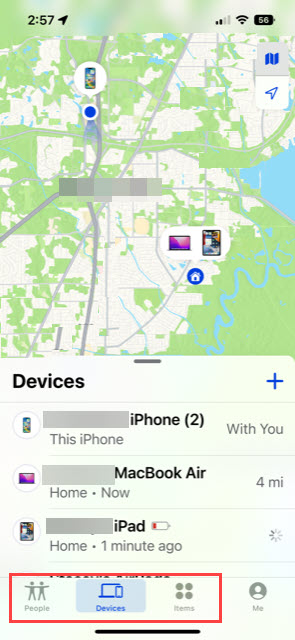
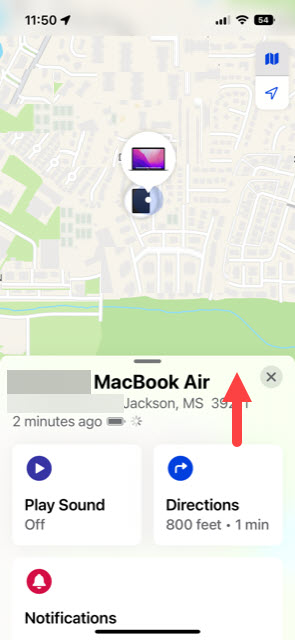
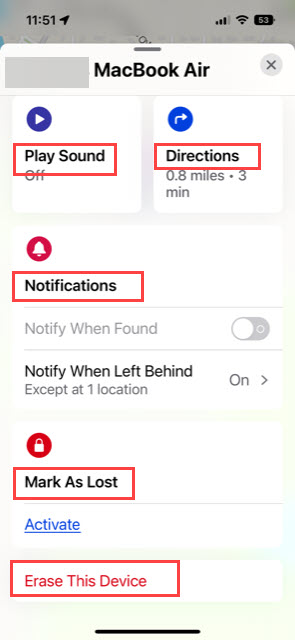
The Find My app makes it easy to track your iOS devices and items you've attached an AirTag to. By enabling the Find My feature, you'll be able to locate a missing device on a map, remotely lock it, play a sound to find it, display a message if it's found, or erase all of its data. Follow these steps to use the Find My feature from any iOS device.
Note: To use this feature, Find My must already be enabled on the missing device, and the device must be turned on or have the Send Last Location feature enabled.
If you've lost your phone and Find My was not activated, unfortunately, you won't be able to proceed with steps below. In that case, we recommend that you change your Apple ID password and passwords for other internet accounts on your device, and report the device as missing.
1
The first thing you should do is ensure that the Find My feature is enabled on all of your iOS devices. Go to Settings > tap your Apple ID below the search bar > scroll down and tap Find My > enable the Find My feature on the device.
With Find My enabled, you'll be able to track all iOS devices associated with your Apple ID. You can track them through the Find My app on another one of your iOS devices and your iCloud account. At this time, AirTags can only be tracked from an iOS device, not the Web.

If you have C Spire service on a lost or stolen iOS device, you can also suspend service by signing in to your online account. Go to Devices > View More > Suspend This Line. Suspending the line stops the service but not the billing. Please chat with us if you determine the device cannot be located.
