×
Wireless Support
C Spire Wireless Support
How to pay your bill using your online account
You can easily pay your bill through your online account. Choose to make a one-time payment today, schedule a future payment, or sign up for AutoPay.
1
Sign in
to your online account.
2
In the
Pay Bill
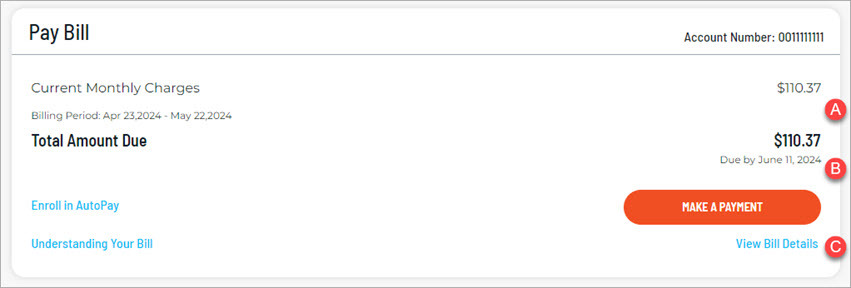
section of your Account Dashboard, you will see A) your balance: current, past-due, and total; B) the bill due date or draft date (if you’re on AutoPay); and C) a link to view your bill. To begin the payment process, click the
Make A Payment
button.
3
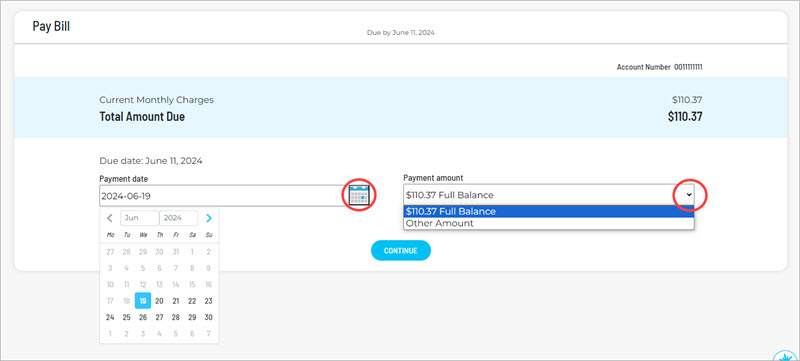
The default option will pay your full balance today. Select the calendar icon to schedule your payment for a different date and the drop-down arrow next to your balance to pay a different amount.
4
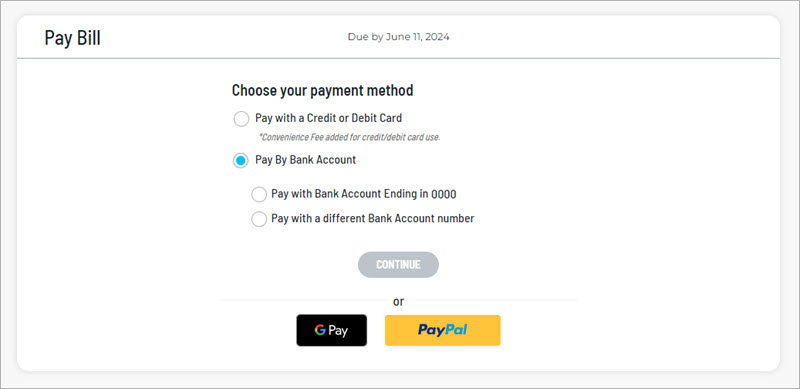
Select your method of payment—credit/debit card, bank account, or third-party payment service—and provide the requested information. Please note that a $2.99 convenience fee will be charged for one-time payments made with a credit or debit card.
5
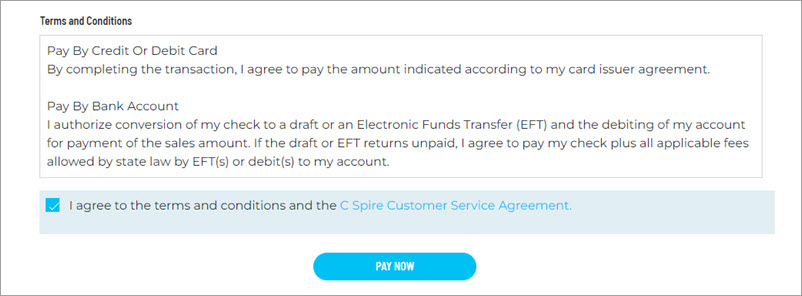
Before confirming your payment details and accepting the Terms and Conditions, you can sign up for AutoPay. Enter the requested information to enroll in AutoPay or select “I do not want to enroll in AutoPay.” Review your payment details, accept the payment Terms and Conditions, and select
Pay Now
.
6
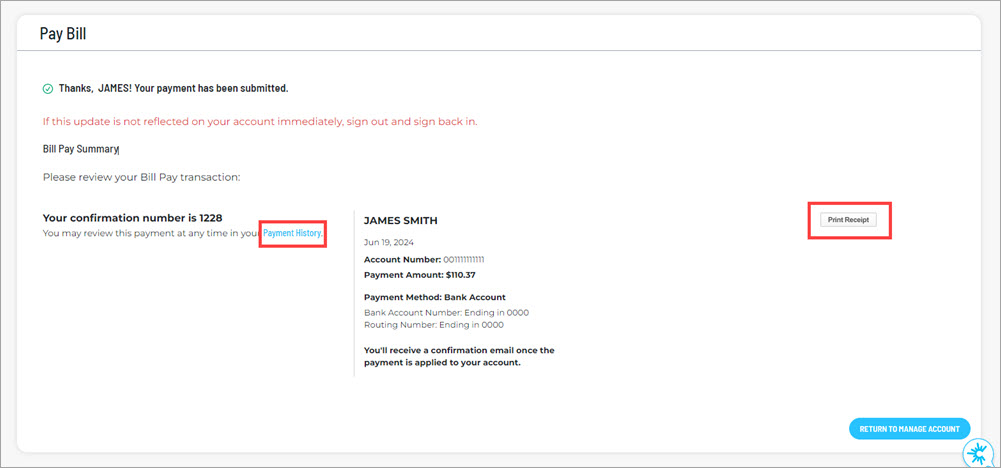
At the payment confirmation screen, you can print a receipt. A confirmation email will be sent to the email address on file for your account.