Before you can link accounts, make sure you've created one My C Spire online account for your wireless service and one for your home fiber, using the same social security number for both.
If you haven't created an online account for one or both of your services yet,
click here to register.
Here's how to link your wireless and fiber accounts.
On Your Computer
- Sign in to your My C Spire wireless account and look for a blue banner at the top of the home screen, reminding you to link your wireless and home services accounts.
- Click Link to Home Account to the left of the banner.

- Enter your home fiber account number and the mobile number associated with your fiber account in the boxes provided.

- Click Submit. You should see a screen noting your accounts have successfully been linked.

Next time you sign in to My C Spire, the top of your home screen will have a green banner noting your accounts have been linked. You'll also see new buttons to the left you can click to see your wireless and home details.

If there was an issue linking your accounts, you'll see a note that the accounts were not able to be linked. If that happens,
chat with us or
call 855-438-1009 for help.
On Your Mobile Device
- Sign in to your wireless account in the My C Spire app and tap Settings at the bottom of the screen.

- On the Settings screen, scroll to the Home section and tap Link fiber account.
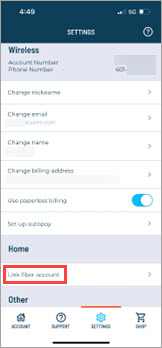
- Enter your fiber account number and the last four digits of the social security number or mobile number associated with your account in the boxes provided.

- Tap Link My Account. You should see a screen noting your accounts have successfully been linked and that you'll be logged out automatically in 30 seconds.
Next time you sign in to My C Spire, the top of the View More Account Settings page will have a green banner noting your accounts have been linked.

If there was an issue linking your accounts, you'll see a note that the accounts were not able to be linked. If that happens,
chat with us or
call 855-438-1009 for help.
