Wireless Support
Bark Jr Setup Instructions
In this article, you'll discover how to get started with Bark Jr for the first time. Most of this information is identical to Bark's own support article for getting started.
Setup Checklist for Online Safety
- Set up your Bark Parent/Guardian Account
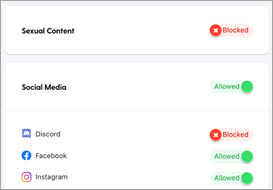
- Enable Parental Controls. (Block and filter content you never want your kids to access.)
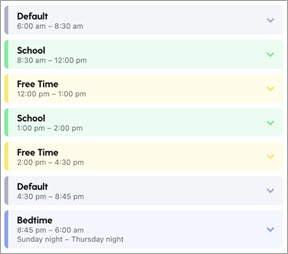
- Set healthy Screen Time limits. (Use the customizable schedule.)
- Finish account settings.
Bark Jr includes screen time and web filtering for unlimited children and unlimited iOS & Android devices.
Bark recommends first setting up the devices that your child has access to, followed by connecting their shared devices.
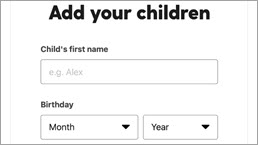
2
Enable Parental Contols
Bark's on-the-go parental controls are also known as Screen Time and Web Filtering. To be able to block apps and filter sites on your child's phone or tablet, follow the applicable instructions below.
- For Android: Install the Bark for Kids app on your child's device. Download from bark.us/android (not the Google Play app store).
- For iOS: Install the Bark Kids app on your child's device. Download from the Apple App Store.
- For Chromebook: Install the Bark for Chromebooks app on your child's Chromebook. Download from the Google Play Store.

Bark Jr. and Bark Premium are services provided by Bark Technologies, Inc. C Spire makes Bark services available to C Spire customers at a discounted cost.
