Activating Shared Cellular Service on Your Apple Watch Series 3 and above (GPS + Cellular)
Activating Shared Cellular Service on Your Apple Watch Series 3 and above (GPS + Cellular)
To activate your Watch’s cellular service, you'll need the iPhone you're going to pair it with. Once cellular service is activated, your Watch will use the iPhone’s data and phone number.
Confirm these settings on your iPhone before you begin:
Wi-Fi is on - Settings > Wi-Fi > Confirm Wi-Fi on
Bluetooth is on - Settings > Bluetooth > Confirm Bluetooth is on
LTE is on - Settings > Cellular > Cellular Data > Cellular Data is on > Cellular Data Options > Enable LTE > Confirm LTE is on
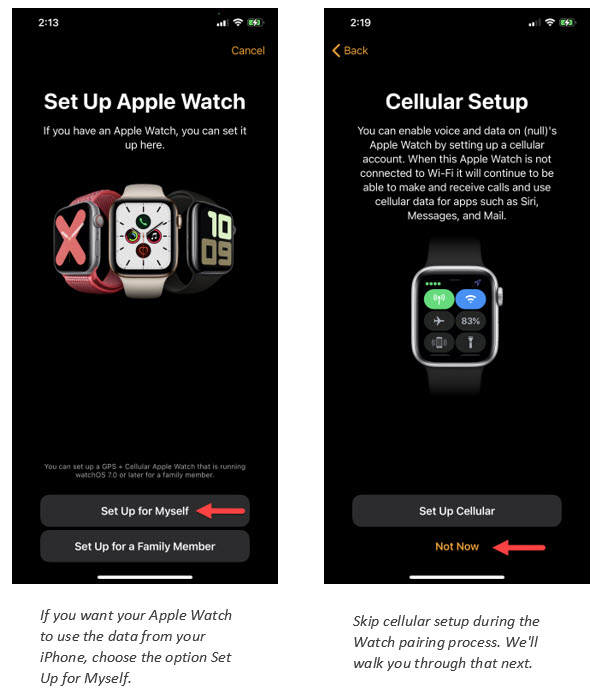
To get started, pair your Apple Watch with your iPhone. This must be done prior to activating your Watch's cellular service. When pairing, choose the option on your Watch to Set Up for Myself, which will allow your Watch to use your iPhone's data and skip the option to set up cellular service at this time. We provide instructions for doing that below.
If you receive the message "Carrier does not currently support Apple Watch," please update the Carrier Setting on your iPhone. Tap Settings > General > About. If an update is available, you'll see an option to update your Carrier Setting. Your iPhone needs iOS 11 or newer and Carrier Setting 32.1 or newer.