To get started, sign in to your company's online account using your current user ID and password.
From the account home page, find the Account Settings link below your balance due date.
If you're accessing our site from a mobile device, the Account Settings link can be found in the Business Quicklinks dropdown menu.
Changing Your User ID
- In the Account Settings menu, click Change Login. You'll see that your existing user ID is populated in the text box.
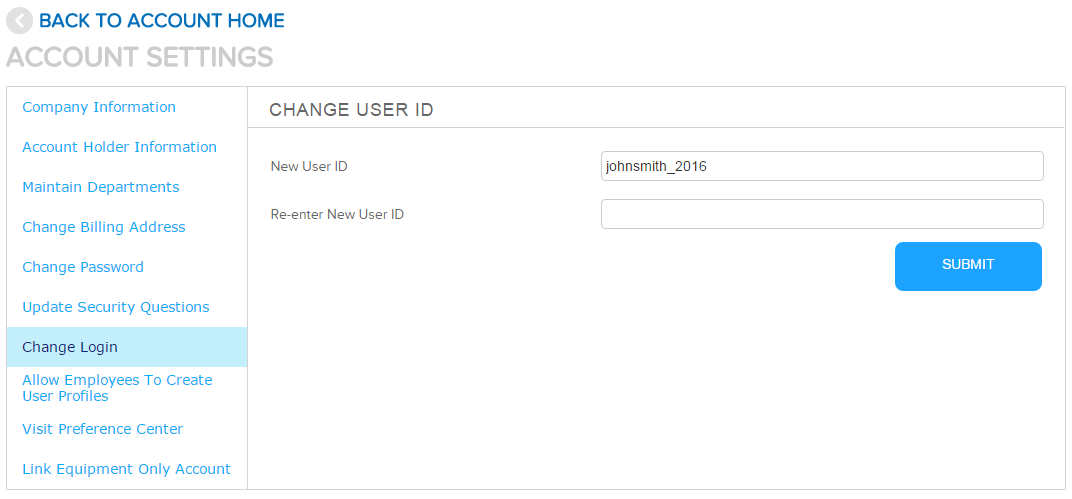
- Enter your new user ID and then re-enter it for confirmation. Remember that your user ID is case sensitive, so capitalization does matter.
- After clicking Submit, you'll receive a message that your changes have been saved.
Changing Your Password
- In the same Account Settings menu, click Change Password. For security reasons, your current password is not populated in the text box. As with your User ID, your password is case sensitive.
- After entering and re-entering your new password, click Save to complete your change.
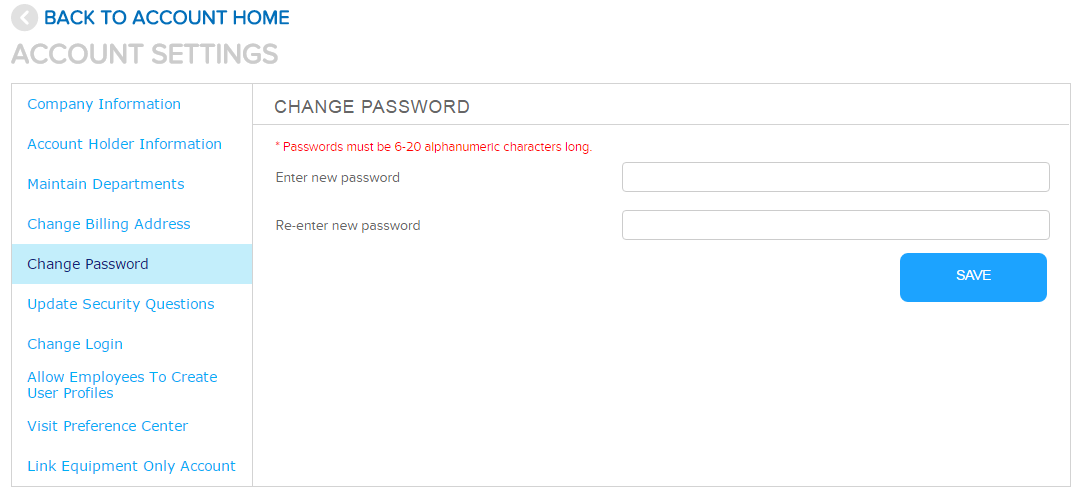
- Click the BACK TO ACCOUNT HOME link to return to your account home page.
After making a change to your user ID or password, a confirmation email will be sent to the email address for your profile.
