Home Services Support
Troubleshooting your C Spire Home Internet
When troubleshooting your home internet, you may have questions about your wireless network or equipment. Find basic information at the beginning of the article or scroll for information on a specific C Spire router.
What should I do if I think there is an outage in my area?
First, eliminate the possibility of issues with the site you're accessing or your equipment.
- If applicable, on your smartphone with WiFI turned off, check the site or app you're using to ensure it isn't down or that there isn't a global internet issue.
- Power cycle your router or the device in question. (To power cycle a device, turn it off or unplug it, wait up to one minute, and then turn the device back on.)
If you're still having issues with your home internet, please contact us at 1-855-438-1009.
Can I bring my own router?
Yes, you can. Here are some WiFi Mesh Network System reviews.
How do I connect a device to my WiFi?
Setup varies slightly by device, but most devices have a Wireless or WiFi Network Settings menu where you will find a list of all the wireless networks detected in your area.
- Find your device's wireless settings menu and select "enable" or "on" to turn WiFi on.
- Select your wireless network (SSID) from the list, then enter the network key/passphrase when prompted, and select "continue" or "join."
- Optional: You can usually check a box to "connect automatically" if you want your device to connect to that network without needing to enter your credentials every time.
- Once you've entered the correct password, the device should connect to WiFi within a moment.
How do I reboot my router?
To reboot your modem manually, follow these steps:
- Unplug the power cord from the back of the modem. Make sure you have unplugged the correct cord by checking that all the lights on the modem go off.
- Wait for one minute. Be patient and wait the full minute for best results.
- Plug the power card back in and wait for the power lights and internet light to indicate connectivity.
Common C Spire routers are listed below. Click the name of the router to expand product information and tips.
NETGEAR R6250

SMART/RG SR400ac
How do I find and change my WiFi Name (SSID) and Password?
- On a computer or tablet connected to your network, open your internet browser and type 192.168.1.1 in the address line. The SMART/RG login dialog box appears.
- Enter the following credentials and click "Sign In."
User Name: admin Password: admin - In the SMART/RG interface, click "WiFi" from the left menu. The SSID and Password are in the WiFi Configuration section.
You can find this information beginning on page 8 of the Quick Start Guide. 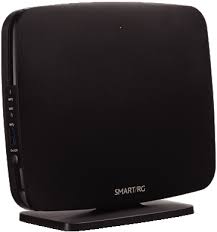
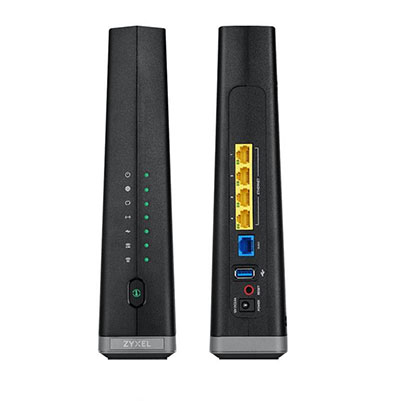
ZYXEL EX3510
Description and Specifications
How do I find and change my WiFi Name (SSID) and Password?
- On a computer or tablet connected to your network, open your internet browser and type http://192.168.0.1 in the address line. The Zyxel login dialog box appears.
- Sign in using the admin username and password printed on the sticker on the bottom of your modem. Please note that these credentials are different than your WiFi network name (SSID) and password.
- Once signed in, look for the "WiFi Settings" section. Click the arrow in the lower right corner to edit the information in this section.
- If updating your password, you'll need to uncheck "Random Password" in order to enter your own password. Save your changes when complete.
Smart WiFi (SuperPod AC)

Smart WiFi (SuperPod AX)

