×
Home Services Support
C Spire Home Services Support
How to update your Plume WiFi password
Learn how to update the WiFi password in the Plume app - for iOS and Android.
iOS
1
Tap the
Menu
icon on the app home screen.
2
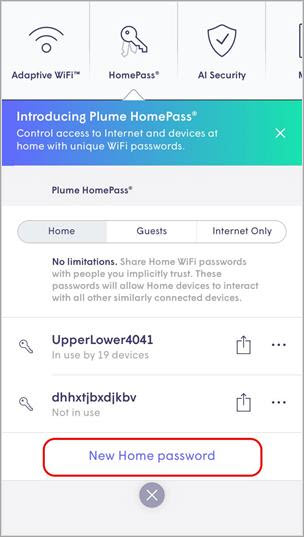
Tap the
HomePass®
tab.
3
In the HomePass Settings page, tap
New Home Password
.
4
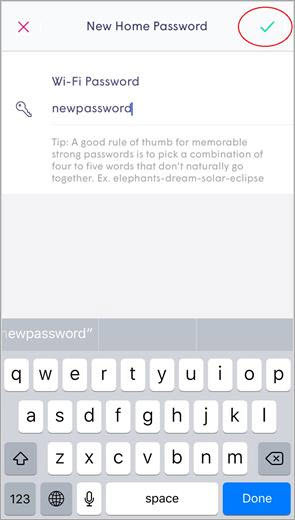
Enter a new password and tap the green check mark to save.
5
Use the Share icon next to the password to send by email, text message, or AirDrop.
Android
1
Tap the
Menu
icon on the app home screen.
2
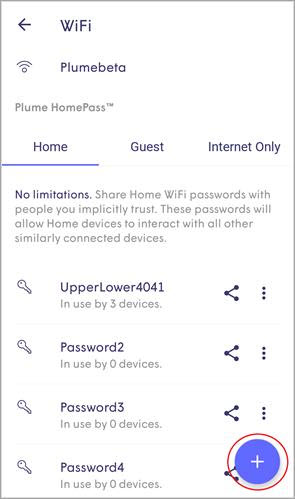
Tap
HomePass
and you will see Plume HomePass section under your network name.
3
While on the HomePass Settings page, tap the
+
icon.
4
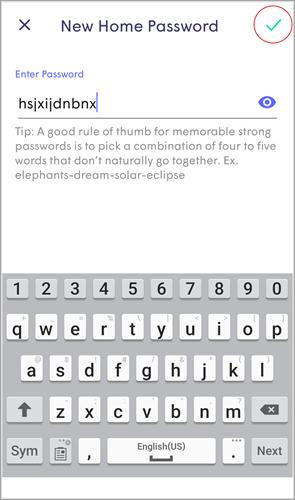
Enter a new password and tap the green check mark to save.
5
Use the Share icon next to the password to send by email, text message, or AirDrop.