Cloud DVR Basics
Your C Spire TV subscription includes 50 hours of storage. You can add additional blocks of 50 hours (bundled in an additional simultaneous stream) for $5/mo each. Sign in to your account to add additional storage and streams.There is no limit to the number of channels you can record at the same time. Your only constraint is the number of hours you have with your subscription.
Set a Recording
Click the on-screen record button from the Guide info module, Shows, Movies or Search screens in the app. By default, we'll go ahead and record every show in a series for you. We also record a minute or so before and after each show so you won't miss a second of your favorite show.Recent Recordings
View a list of your recent recordings under the Shows and Movies screens.Manage Recordings
The Manage Recordings area of the C Spire TV app gives you a view of all the recordings you've made and let's you view all your scheduled recordings. Click into individual recordings to access additional menu items.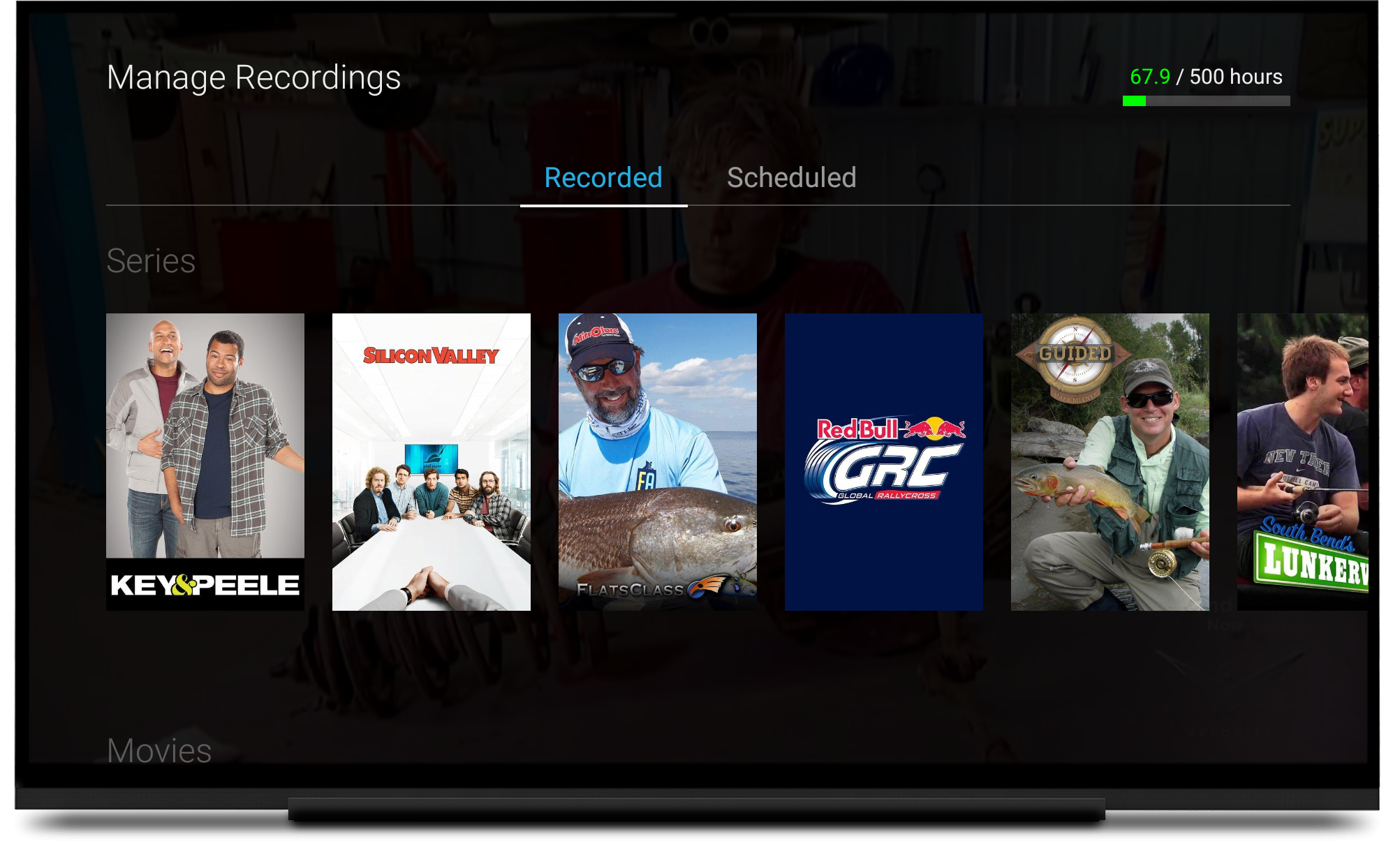
Shows
Recordings are listed from most recent to oldest and grouped by series. Select a series to:- View recordings
- Play, delete (individual or all) or get show info on individual recordings.
- View scheduled
- View list of upcoming individual and series recordings
- Set recording options
- Set the channel of the individual or series recording.
- Add extra time to the end of a recording.
- View series info
- View series description
- View series description
Movies
Recordings are listed from most recent to oldest. Select a movie to:- Play movie
- View movie info
- Delete movie
