2
Power on.
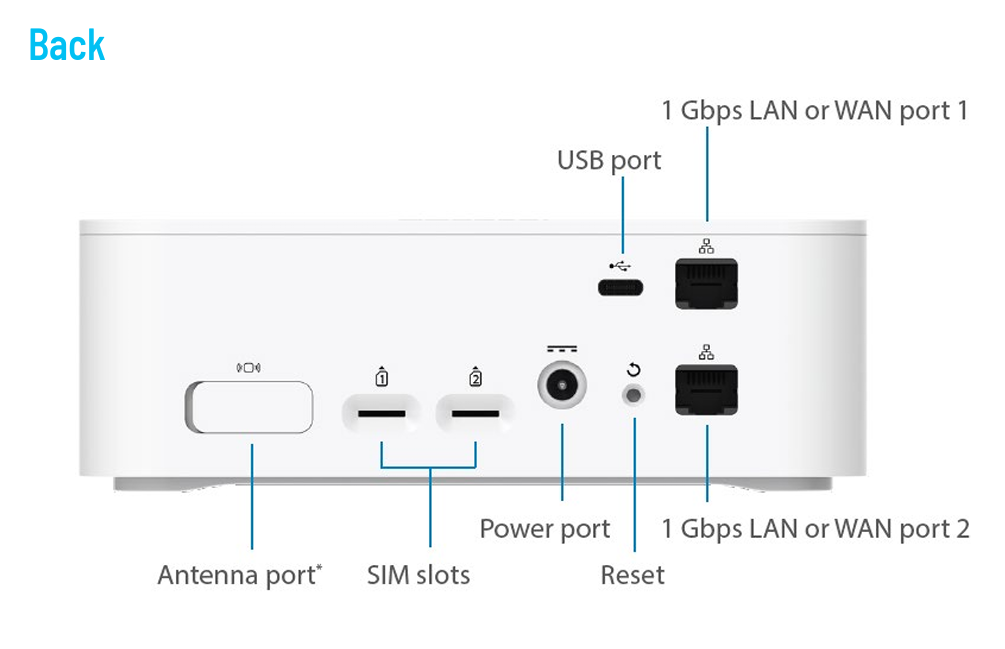
- Plug in the router.
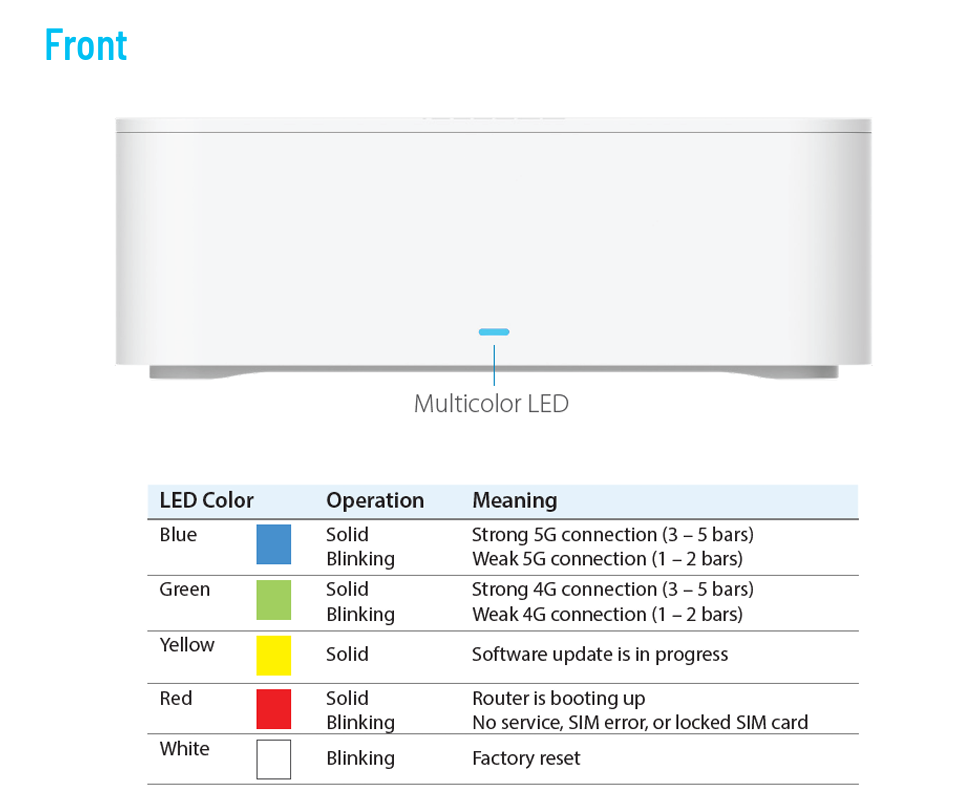
Location suggestions: Near a window but not in direct sunlight, on or above ground level (not in a basement), clear from obstructions and interference from other electronic devices, and outisde of cabinets or locations that can get excessively hot. - When the device status LED is solid or flashing blue (5G) or green (LTE), the router is on. The light will change colors as it activates. It may take up to three minutes for the router to fully power on.
3
Identify a location.
- To find the best location, you can use the FX3110 LED, or you can use the Inseego Mobile™ app.
- Alternatively, adjust the location of the router until the LED is solid blue (5G) or solid green (LTE). If it is blinking blue or green, you may not be getting a strong cellular connection.
4
Connect wireless devices.
To connect WiFi-capable devices such as a PC, laptop, tablet or phone:
- Make sure the router is powered on, and the indicator LED is blue or green.
- On the device you want to connect, open the WiFi settings or application and in the displayed list of available networks, find the Primary WiFi network name printed on the bottom of your router.

- Click Connect or otherwise select the network name.
- When prompted, enter the Primary WiFi Password found on the bottom of the router.